Adobe Lightroom CC 2019

Adobe Lightroom CC 2019

· v2.3 Free

Adobe Photoshop Lightroom software helps you bring out the best in your photographs, whether you're perfecting one image, searching for ten...

Description

Adobe Photoshop Lightroom software helps you bring out the best in your photographs, whether you’re perfecting one image, searching for ten, processing hundreds, or organizing thousands.


Create incredible images that move your audience. Experiment fearlessly with state-of-the-art nondestructive editing tools. Easily manage all your images. And showcase your work in elegant print layouts, slide shows, and Web galleries, as well as on popular photo-sharing sites. All from within one fast, intuitive application.

WHAT’S NEW

Version 2.3:

• Release notes were unavailable when this listing was updated.

REQUIREMENTS

• Intel, 64-bit processor

• macOS 10.12 or later

• 2 GB RAM (8 GB recommended)

• 1 GB of Video RAM (VRAM). 2 GB of dedicated VRAM is suggested for large, high resolution monitors, such as 4K and 5K-resolution monitors.

• OpenGL 3.3-capable video adapter for GPU-related functionality

• Internet connection

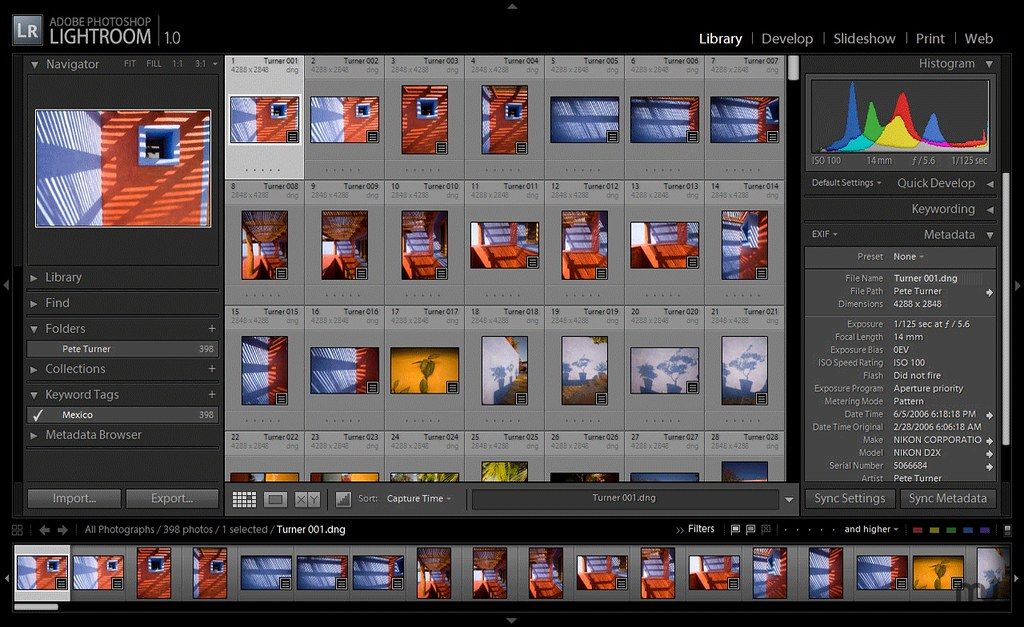
ScreenShots

:

If you are using Adblocker!! Please support this website by adding us to your whitelist. Ads are what helps us bring you premium content! Or read this to know how you can support us. Thank you!

Size

– 902MB

Previous Versions

✓ Checked against source material

Editor-checked details

Editor: macv.net Editorial Team · Last reviewed: 2026-08-06
Apple SiliconRosetta 2
Intel MacCompatible
Why we recommend it

It suits photographers whose images move between devices and who value low-friction organization, editing and sharing over folder control; it is not a sensible long-term production base on a modern Mac. Use a two-copy card backup, import, wait for original sync, retain all originals locally, export Originals + Settings monthly and archive delivery files independently. Audit quota, sync errors, sharing permissions and sampled originals each month. Compare Lightroom Classic for folders, bulk metadata, print and large offline catalogs; Capture One for professional color/tethering; Affinity Photo for subscription-free pixel editing; Photomator for macOS library integration; Pixelmator Pro for lightweight fast edits. Migrate album by album and preserve RAW plus settings, not only JPEG derivatives.

Pros

  • A simpler interface than Classic avoids complex folder-path management after import. Originals and nondestructive edits synchronize across Mac, phone, tablet and web. Search, people recognition and automatic organization aid discovery. Texture treats skin and material detail with control, while Defringe addresses common purple/green edges. Group Albums accept invited contributions. Contextual help and interactive tutorials support new users. RAW, JPEG and TIFF assets share one editing library, and album sharing/export suits travel, family and lightweight social delivery.

Cons

  • Version 2.3 is an Intel-era build that depends on Rosetta on Apple silicon and lacks period validation for later macOS, RAW cameras, GPU drivers and online services. The workflow depends on a subscription, Adobe ID, network and cloud quota, increasing long-term cost with library size. “In the cloud” is easily mistaken for backup; deletion and sync changes can propagate across devices. Opaque local cache and low disk space cause proxies, export waits or stalled sync. Compared with Classic, it lacks mature folder control, print, tethering and large offline catalogs. Group Albums add permission and copyright duties; people recognition and cloud originals raise privacy concerns. Tutorials, links and old sign-in behavior can change with services.

Installation steps

  1. Lightroom 2.3 is the 2019 cloud-based Lightroom, not Lightroom Classic. Its period requirements were a 64-bit multicore Intel processor, macOS 10.12+, 4 GB RAM (8 GB recommended), about 2 GB application space, 1024×768 and an OpenGL 3.3/Metal-capable GPU; Adobe ID and Internet are required for activation, subscription validation and original sync. It predates Apple silicon, so M1/M2/M3/M4 are Rosetta 2 legacy-compatibility cases, not native support. After installation, place Local Storage on an SSD with ample room, prevent sleep and import ten disposable RAW/JPEG samples. Wait for the cloud status to complete, then verify RAW rendering, Texture, Defringe, local brush, JPEG/TIFF export and offline access to an original. Preserve a separate camera-card copy before real imports; the Lightroom cloud library is not the sole backup.

Uninstallation steps

  1. Before uninstalling, open cloud status and resolve every syncing, sync error or stuck-original item. Select all photos and export Originals + Settings into year/project folders on an independent disk; also export delivery JPEG/TIFF files and record shared-album members, permissions, keywords, titles and copyright. “Store all originals locally” still requires verification of count, extensions, byte size and sampled hashes—cache presence is not a recoverable backup. Open samples offline and copy the archive to a second disk. Uninstall through Creative Cloud. Do not remove Lightroom Library, Originals, cache or cloud photos until the archive is proven. Revoke shared links and contributor access before any cloud deletion.

Common errors and fixes

  1. Sync never finishes: keep Lightroom foregrounded and the Mac awake, then check Adobe storage quota, proxy/VPN, clock and firewall. Use a small sample to distinguish one damaged file from a global network issue; do not repeatedly quit and overwrite state. Low-resolution proxy only: check cloud/info status, move Local Storage to an SSD with room and force-download the original before export. For duplicates, filter by capture time, filename and camera serial instead of importing the whole card again. M1/M2/M3/M4 launch failures: verify Rosetta 2, remove old plug-ins/fonts, reset preferences and test a clean account; this build has no native Apple silicon code. Unsupported RAW color/lens data may require a preserved DNG copy. Use Texture lightly and locally, checking skin and edges at 100%. Narrow Defringe hue ranges if gray edges appear. For export shifts, choose sRGB/Display P3 deliberately, embed the profile and review in the delivery app. Check album permission, invitee account and upload completion when shared photos are absent.

What changed in this version

  1. Lightroom desktop 2.3 shipped in May 2019. Texture can enhance or soften mid-frequency detail such as skin, bark and hair globally or through Brush, Linear Gradient and Radial Gradient while largely preserving color and overall tonality. Desktop gained a Defringe sampler for purple/green chromatic fringes. The release also added contextual help, photographer-led interactive tutorials, contributor-enabled Group Albums, camera/lens support, faster macOS HiDPI grid scrolling and improved Auto performance on large selections. Batch-pasting edits belonged to Android 4.3, not desktop 2.3. Its central model remains cloud upload of originals with nondestructive edits synchronized across desktop, mobile and web.

Alternatives

Screenshots

Adobe Lightroom CC 2019 截图