Adobe Dimension
Adobe Dimension is a powerful and user-friendly utility created to help you speed up the process of designing 3D photorealistic...
Description
Adobe Dimension is a powerful and user-friendly utility created to help you speed up the process of designing 3D photorealistic package and product art from scratch, such as mockups, advertising shots, logos, and branding, even if you have little to no previous with similar solutions.
With the help of the Adobe Dimension design software solution, you can create lifelike looking 3D objects using materials described in Adobe Standard Material based on NVidia’s MDL (Material Design Language).
Design 3D models with realistic lighting
All models you create in Adobe Dimension use 3D lighting which closely follows realistic lighting for a more life-like look. For people who need more information regarding the lighting, you can get a quick overview on the Lighting in Dimension CC help page.
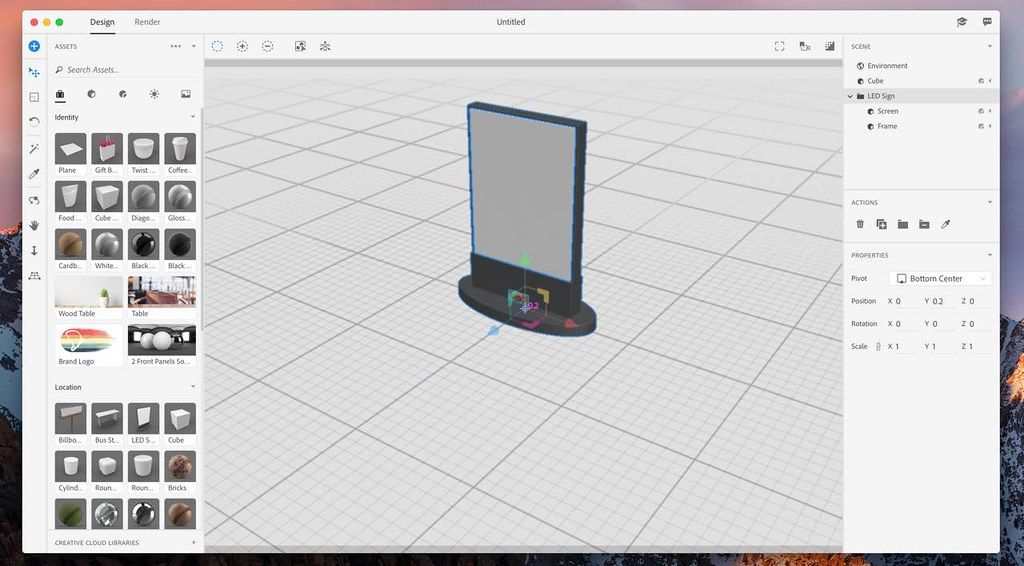
Once installed and launched on your Mac, Adobe Dimension makes it possible to create a new 3D design by adding new objects to the model by drag and dropping them on the workspace from the Assets panel on the left side of the main window.
This panel also enables you to add background images to your design, as well as textures, backdrops, and materials, with all o them easily being matched to the entire scene with a click of a button.
Simple to access suite of tools for drag and drop 3D design
On the left side of the main screen, you can also access the app’s toolbox which allows you to toggle various tools to manage the currently selected object in the scene.
Furthermore, the right-side inspector panel provides with contextual-based scene, actions, and properties controls to quickly tweak your design with just a couple of mouse clicks.
If you want to increase your productivity while using Adobe Dimension to create 3D photorealistic objects using your Mac, you can make use of the extensive list of keyboard shortcuts available on the Default keyboard shortcuts help page.
Powerful yet easy to use 3D mockup design for the Mac
Overall, if you don’t have enough experience to use
Editor-checked details
Recommended for graphic designers producing packaging, bottles, labels, logos, poster product scenes and e-commerce key art quickly—not as the only tool for ground-up modeling, character animation or large 3D production. Compare Substance 3D Stager for a newer Adobe scene workflow, KeyShot Pro for specialist product rendering, SketchUp Pro for broader modeling/scene work, Substance 3D Painter for material painting, and Photoshop for final layout/retouching. First render a target-size sample containing transparency, decals, metal, glass and shadows to measure Rosetta performance and render time. Keep incremented `.dn` versions and reference images, lock camera/output settings, and deliver the document, every dependency, font licenses, color space, render settings and one approved benchmark image.
Pros
- Drag-and-drop scene assembly is more approachable than a full 3D suite and suits packaging, branding, product key art and advertising mockups; Match Image estimates camera perspective, horizon and environment light to integrate models with a background quickly; Adobe Standard Material, decals, environment lights and primitives build convincing scenes rapidly; PSD/AI/image assets fit Adobe workflows; real-time preview plus ray-traced final rendering balance speed and quality; layered PSD, PNG/JPG, environment-light and selected 3D exports support Photoshop finishing.
Cons
- It is not a full modeling, sculpting, rigging, animation or node-material tool, so models/UVs usually come from elsewhere; Apple silicon still requires Rosetta 2 and is less efficient than a native app; Mac lacks the NVIDIA GPU ray-tracing route available on Windows, making complex final renders slow; 16 GB is only the floor and 8K textures/multi-model scenes quickly create memory pressure; 4.x renderer/material changes can prevent pixel-identical reproduction of old work; built-in Creative Cloud Libraries support has ended; many external dependencies mean a missing texture, font or HDRI can break handoff.
Installation steps
- For Dimension 4.1.4 on Mac, the baseline is macOS Monterey 12, 16 GB RAM and about 30 GB free on a local SSD; Ventura 13, 32 GB and 50 GB are preferable, with more memory for complex scenes. Intel Macs are supported. M1/M2/M3/M4 use Rosetta 2 translation rather than a native Apple-silicon build, so launch and rendering performance can be affected. Update macOS first for current Metal/GPU drivers. Install through Creative Cloud and ensure Rosetta 2 is present before enterprise or stand-alone deployment on Apple silicon. Before production, test the viewport and local renderer with one model, texture and environment light. Keep `.dn` documents, models, textures, SBSAR files, fonts, backgrounds and exports in a structured project folder; back up and vet external models before import. Older scenes can look different under the newer renderer and Adobe Standard Material, so open a copy and verify materials, UVs, decals, lighting, camera, shadows and opacity.
Uninstallation steps
- Before uninstalling, make a read-only copy of every `.dn` document and collect all linked models, textures, SBSAR files, HDRIs/environment lights, backgrounds, fonts and final renders; a document alone may omit external dependencies. Open backup copies and check every missing-asset warning. Export PNG/PSD/JPG references for key cameras plus any models/UVs needed for migration. Record render dimensions, quality, denoising, color, material values and font licenses. Creative Cloud Libraries support inside Dimension has ended, so preserve important library assets locally first. Uninstall via Creative Cloud without deleting project folders. For troubleshooting, reset preferences, remove suspect assets and test an empty scene; after reinstalling, validate open/save, texture links, render and export on copies before touching the only original.
Common errors and fixes
- If Apple silicon cannot launch or repeatedly errors, confirm Rosetta 2 is installed, remove incompatible launch overrides, and repair/reinstall through Creative Cloud; Dimension is not currently native on Apple silicon. For a black/flickering viewport, crashes or renderer startup failure, update macOS, avoid remote desktop/VM/eGPU configurations, reduce texture size/material samplers, test a blank file and restore assets one at a time. If an older project changes appearance, remember that 4.x updated the real-time/ray-tracing renderer and Adobe Standard Material; compare a copy with reference renders and recheck IOR, roughness, metalness, opacity, normals, UVs, lighting and color. For missing textures/models, restore relative paths or relink—do not casually move dependencies in Finder—and package them for handoff. Version 4.1.4 addresses an important memory-leak vulnerability affecting 4.1.3 and earlier, so verify the running version. Under memory pressure, downsize 8K textures, remove hidden models, render layers and preserve SSD scratch space.
What changed in this version
- Dimension 4.1.4 (August 12, 2025) is a security maintenance release addressing an important memory-leak vulnerability in 4.1.3 and earlier; Adobe reported no known exploitation at publication. It retains the 4.1 codebase improvements: better Match Image lighting, contextual task bar, viewport camera-orbit controls, higher-contrast theming, JPG rendering, EXR/PSD environment-light export, 8K SBSAR textures, an updated Substance engine, importer libraries and stability fixes. The 4.x line also changed the real-time/ray-tracing renderer and Adobe Standard Material, so older documents remain loadable but can look different. The purpose of 4.1.4 is the security correction rather than new modeling functionality.





Alternatives





Screenshots