Parallels Desktop
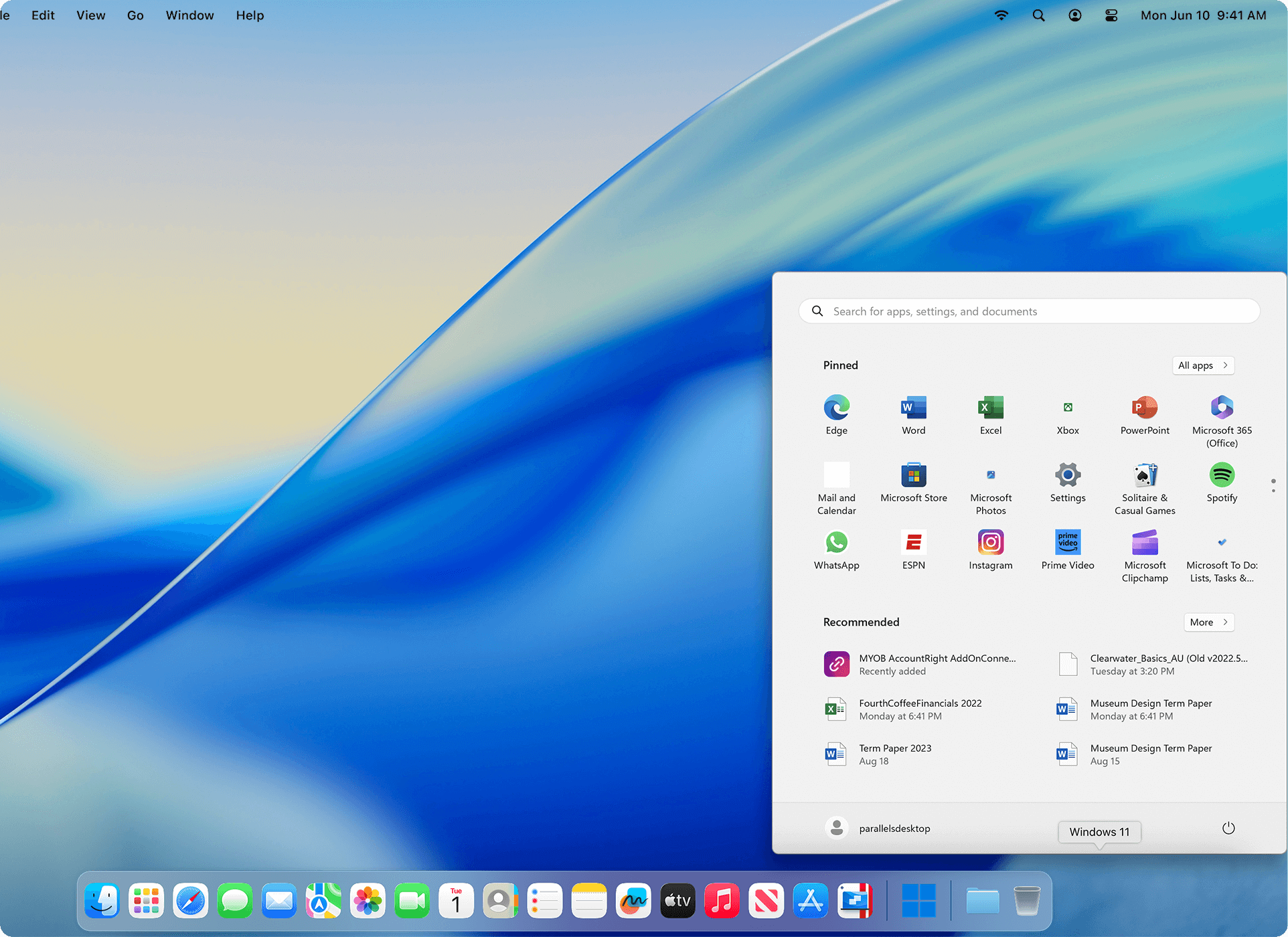
Parallels allows you to run Windows and Mac applications side by side. Choose your view to make Windows invisible while still using...
- Intel, 64-bit processor & Apple Silicon
- macOS 12.0 or later
Description
Parallels allows you to run Windows and Mac applications side by side. Choose your view to make Windows invisible while still using its applications, or keep the familiar Windows background and controls on your Mac.
Works with Boot Camp®
• Reuse your existing Boot Camp installation. Converting a virtual machine from Boot Camp is now much easier and more intuitive than ever.
Not just for Windows
• Run a wide array of operating systems including OS X, Windows 10, 8.1 & 7, Linux, and Google ChromeTM. You can run just about anything on your Mac!
One-click tuning
• Select productivity, games, design, or development, and Parallels Desktop 11 for Mac will optimize your virtual machine settings and performance for you.
Robust Performance
• Parallels Desktop Pro Edition gives your virtual machines more processing power. Up to 64 GB vRAM and 16 vCPUs per virtual machine lets you run even the most demanding applications with ease.
Business Class Software
• Keep IT in control of end user licenses and Windows virtual machines with a Unified Volume License Key, centralized license management, and advanced security features available in Parallels Desktop Business Edition.
WHAT’S NEW
Version 27.0.0 (58628):
• Release notes were unavailable when this listing was updated.
REQUIREMENTS
• Intel, 64-bit processor & Apple Silicon
• macOS 12.0 or later
ScreenShots
If you are using Adblocker!! Please support this website by adding us to your whitelist. Ads are what helps us bring you premium content! Or read this to know how you can support us. Thank you!
•
Size
– 160.8MB
Previous Versions
Editor-checked details
Recommended for Mac users who must reliably run Office, finance/engineering tools, browser tests or Windows development environments and value seamless integration. Compare VMware Fusion for free general virtualization, UTM for an open-source lightweight option, or CrossOver for a small set of Windows apps; keep a real Windows PC for discrete-GPU, anti-cheat, USB-driver or Hyper-V dependencies. Trial the exact apps, peripherals and VPN, and compare Standard/Pro/Business resource and licensing limits. Verified from Parallels' official v26 requirements, 26.4.0 notes, Windows 11 Arm limitations and uninstall documentation
Pros
- Simple Windows 11 setup and polished Mac integration through Coherence, shared clipboard/folders, drag-and-drop, USB, printing and snapshots; strong performance and efficiency on Apple silicon; practical for Office, finance, testing and development; enterprise editions add centralized deployment and management.
Cons
- Both Parallels and Windows commonly require paid licenses, with ongoing upgrade cost; VMs consume substantial RAM and storage; Apple silicon is limited to Arm guests, leaving some drivers, anti-cheat, specialist peripherals, nested virtualization and newer games incompatible; 3D is not equivalent to a native PC, and excessive snapshots add space and recovery complexity.
Installation steps
- Parallels Desktop 26 supports Intel and Apple silicon. Supported hosts include macOS Ventura 13.7, Sonoma 14.7, Sequoia 15.5 and Tahoe 26 or newer point releases; older macOS versions receive an earlier Parallels build. Minimum memory is 4 GB and the app needs about 600 MB, but practical Windows use benefits from 16 GB+ RAM, SSD storage and far more than the 16 GB guest minimum.
- Apple silicon natively virtualizes Arm guests only; let Parallels download Windows 11 on Arm. Intel Macs use x86 Windows. Install Parallels Tools, and leave sufficient CPU/RAM for macOS. Parallels and Windows licenses are separate, so activate Windows legally. Copy old .pvm bundles before import, then test shared folders, printers, USB, VPN, developer tools and business apps after upgrading Tools.
Uninstallation steps
- Shut down rather than suspend each VM. Back up its .pvm bundle from Documents/Parallels or the custom location and verify that Time Machine/external recovery works. Use Keep Files to remove a VM from Control Center temporarily; Move to Trash deletes the VM and Windows files and is not a normal app-uninstall step.
- Quit Parallels Desktop and move it from Applications to Trash; this does not delete .pvm files. Release the activation from your account before changing Macs. Delete snapshots and virtual disks only after confirming the backup opens, and separately verify any files shared with macOS.
Common errors and fixes
- If a Windows app fails on Apple silicon, confirm Windows 11 on Arm and check whether the app, driver, anti-cheat or hardware dongle supports Arm. x86/x64 apps rely on Windows translation and are not universally compatible. Nested virtualization, Hyper-V, VBS and some emulators are unavailable on Apple silicon, while 3D limits affect newer games.
- For freezes, random shutdowns or black OpenGL rendering, update to 26.4.0, which fixes multiple Windows 11 stability, OpenGL and Outlook attachment issues. Update/reinstall Parallels Tools and check free disk, RAM allocation and host updates. The 26.3 Steam/x86 launch regression was fixed in 26.3.1.
- For network, sharing or USB failures, compare Shared versus Bridged mode, temporarily disable VPN/filter software, reinstall Tools, and regrant system-extension, file and removable-volume permissions. Never run duplicate copies of one .pvm; snapshots are not independent backups.
What changed in this version
- Parallels Desktop 26.4.0 (57513) fixes Windows 11 VM crashes, freezes after startup/shutdown and random power-offs; black rendering in RSTAB9 and OpenGL apps such as Blue Sky Plan/coDiagnostix; and Outlook attachments not opening. It also fixes unusable screen areas in Kali Xfce and bridged-Wi-Fi networking for macOS Ventura guests, with additional enterprise deployment and Azure Storage image-distribution improvements.





Alternatives


Screenshots