Super Vectorizer Pro
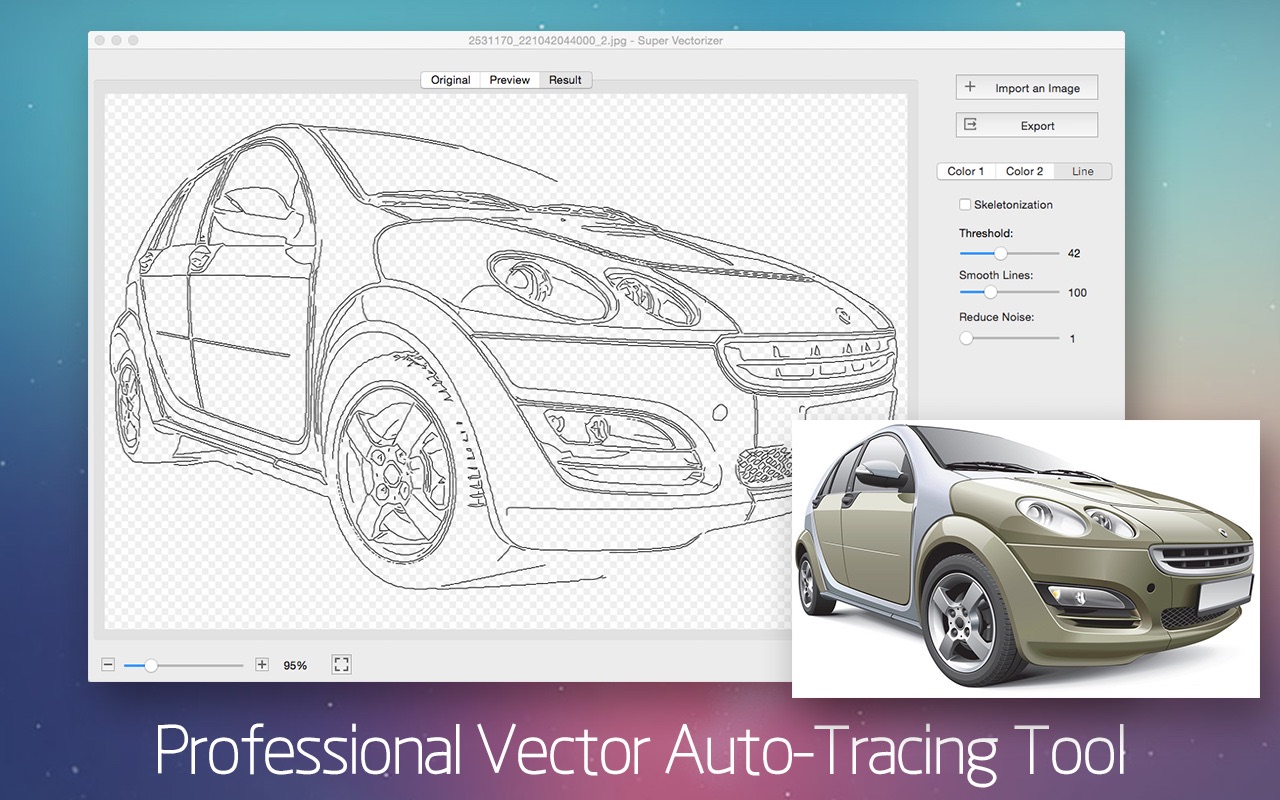
Super Vectorizer is a professional vector-trace tool that enables conversion from a raster (bitmap) image--such as JPEG, BMP, or PNG--to a...
Description
Super Vectorizer is a professional vector-trace tool that enables conversion from a raster (bitmap) image–such as JPEG, BMP, or PNG- -to a scalable vector graphic with a few simple clicks. It automatically creates high-quality vector traces from images, and supports tracing of not only color and grayscale images, but also black and white.
Super Vectorizer can be used for personal and professional projects alike, whether you are a hobbyist or a graphic designer. With technological advances in raster-to-vector conversion, Super Vectorizer does an impressive job of vectorizing raster / bitmap / photo images into crisp, clean, scalable fine line art / illustrations / vector art.
It will assist anyone who does a lot of vector-image cleanup to become more productive.
Features
• One-click vectorization
• Automatic tracing or images in many formats (PNG, JPG, BMP, etc.)
• Options for vectorizing images by edge, color, or grey color.
• Better accuracy: more closely resembles the input image.
• Ai, SVG, and PDF vector output
• Powerful preview to inspect the result in detail
• Vectorizes very large images
• Fast speed
WHAT’S NEW
Version 2.3.3:
• Optimized for Mac with Apple Silicon M1 & M2 chip.
• Newly add contour line functions to greatly improve the smoothness of the line edge.
• Fixed the svg exporting issues in the line tab.
REQUIREMENTS
• Intel, 64-bit processor
• OS X 10.11 or later
ScreenShots
:
If you are using Adblocker!! Please support this website by adding us to your whitelist. Ads are what helps us bring you premium content! Or read this to know how you can support us. Thank you!
Size
– 6.2MB
Previous Versions
Editor-checked details
Recommended for designers, printers and makers who need a vector first pass from legacy logos, scanned line art, decals/cutting art or limited-colour illustration. Workflow: confirm rights; crop, denoise, correct contrast/transparency; choose Color/Edge/Line/Skeleton by content; compare several restrained settings instead of maximising colours; inspect corners, holes, overlaps and node density; export SVG/PDF/AI or DXF; remove fragments, merge shapes, rebuild gradients/text and correct colour in the target editor; perform a small material test for cutting/CNC; round-trip final delivery; archive original, settings, cleaned master, manifest and SHA-256. Use Illustrator or VectorStyler for full finishing, or compare Affinity Designer for a non-subscription workflow.
Pros
- It quickly turns logos, icons, scanned line art and limited-colour illustration into scalable paths as a first pass before manual cleanup. Edge, Color, Grayscale, Line and Skeleton modes cover filled regions, outlines and centreline needs; preview and parameters make variants easy to compare. AI, SVG, PDF and DXF feed design, print, web, cutting and CAD workflows. It handles large inputs quickly and reduces repetitive tracing. Build 2.3.3 is optimised for M1/M2 while retaining Intel support. Its focused interface is easier to approach than a full vector editor.
Cons
- Automatic tracing does not understand object semantics. Photographs, shadows, transparency, textures and gradients become many regions/nodes and can be harder to edit than the bitmap. Low resolution, compression noise and blur are traced too, so inputs need preprocessing. Colour, spot, overprint and ICC cannot be assumed to survive; AI/SVG/PDF/DXF curves, units and clipping vary by receiver. Duplicate lines, open paths and tiny fragments can cause cutting/CNC material or machine issues. This is not a full illustration editor—node cleanup, text, layout and brand finishing still need Illustrator, VectorStyler or similar. Validate the older 2.3.3 build on later macOS/M-series systems.
Installation steps
- The site package is Super Vectorizer Pro 2.3.3. Official requirements are macOS 10.11+, Intel support and optimisation for Apple silicon M1/M2. Copy it to Applications, then prepare three benchmarks: high-contrast monochrome line art, a flat-colour logo and a noisy/gradient photograph. Preserve originals and record pixel size, colour space and intended use. Compare Edge/Color/Grayscale and Line/Skeleton modes. Start with a low colour count and moderate smoothing; zoom in to inspect contours, sharp corners, holes, overlaps and node count. Before AI/SVG/PDF/DXF export, fix units and canvas, then round-trip in Illustrator, VectorStyler or the target cutter/CAD app. Confirm closed paths, scale, transparency and colours before reusing settings; hash input and output with SHA-256.
Uninstallation steps
- Before removal, retain source bitmaps, final vectors and reproducible settings: trace mode, colour count, smoothing/noise thresholds, contour or skeleton settings, canvas units and export format. Preserve editable AI/SVG plus viewable PDF/PNG and reopen them in the receiving app. For cutting, CNC or embroidery, inspect closed paths, duplicates, tiny fragments, direction, dimensions and minimum spacing. Name manually cleaned masters separately from automatic first passes; create a manifest and SHA-256. Store licence records, quit and remove the app. Before clearing preferences/caches, capture settings. Removing the app is not project archiving: inputs, rights evidence and deliverables belong in independent project storage.
Common errors and fixes
- If output has too many nodes or jagged edges, denoise first, increase smoothing, reduce colour count and crop irrelevant background. Do not rely only on post-export path simplification, which can erase corners and holes. Colour banding occurs because photographs/gradients are quantised into finite regions; tracing cannot reproduce continuous tone, so retain raster content or rebuild gradients. For broken, doubled or uneven outlines, compare Edge, Line and Skeleton modes and adjust thresholds; correct scan contrast first. If SVG/AI shifts downstream, inspect canvas, viewBox, units, clipping and transparency. For DXF, verify dimensions and curve conversion. For blank/hung exports, resize huge inputs, convert to standard PNG/TIFF and free memory. On M-series Macs confirm the matching 2.3.3 build. Review copyright, trademarks and production safety for every automatic result.
What changed in this version
- Super Vectorizer Pro 2.3.3 notes list optimisation for Apple silicon M1 and M2, a new Contour Line function to improve line-edge smoothness, and a fix for SVG export from the Line tab. The build supports Edge, Color, Grayscale, Line and Skeleton-style raster tracing with AI, SVG, PDF and DXF output. This summary is limited to 2.3.3 and its documented capabilities; later hardware or online-service features are not attributed to this package.




Alternatives



Screenshots