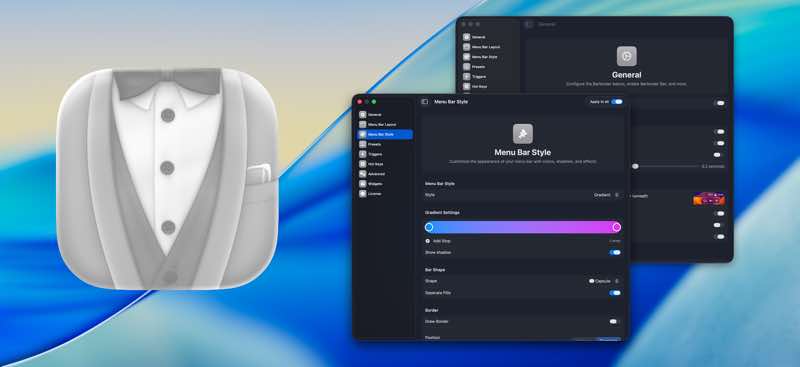
Bartender
Bartender lets you organize your menu bar apps. Features Take control of your menu bar - With Bartender you can choose which...
- Intel, 64-bit processor
- macOS 14.0 or later
Description
Bartender lets you organize your menu bar apps.
Features
• Take control of your menu bar – With Bartender you can choose which apps stay in the menu bar, are displayed in the Bartender Bar or are hidden completely.
• The Bartender Bar – The Bartender Bar can be displayed and hidden as you want, by clicking on the Bartender Icon or via a hot key.
• Menu bar apps still work the same – Apps still work the same when they are in the Bartender Bar allowing you quick access to them when needed, but keeping them out of sight when not.
• Show an app in the menu bar when it updates – Set up your apps to be displayed in the menu bar for a period of time when they update.
• Order your menu bar items – With Bartender you can set the order of the menu bar items, both in the menu bar and in the Bartender Bar, simply by ⌘+dragging the items. The order you set is maintained after restarts. So your menu bar items are always in the order you want.
• Minimalism – If you want a really clean look and privacy, Bartender can also be hidden.
• The Bartender Bar can be placed where you want – The Bartender Bar can be moved at any time to any horizontal position immediately under the menu bar. Or it can open under the Bartender icon.
• Keyboard Navigate your menu bar items – Keyboard navigate all menu items both in the menu bar and the Bartender Bar; simply arrow through them and press return to select.
• Search menu bar items – You can search the Bartender Bar for menu items, allowing you quick access to a menu item without looking for it. Simply display the Bartender Bar and start typing, then press enter to select the menu item.
Bartender lets you organize your menu bar apps by hiding them, rearranging them, or moving them to Bartender’s Bar. You can display the full menu bar, set options to have menu bar items show in the menu bar when they have updated, or have them always visible in Bartender’s Bar.
There are loads of ways to configure Bartender to perform as you wish. Give it a
Editor-checked details
Best for heavy Mac users with many menu utilities, a notched MacBook, multiple displays, or distinct work/recording/sharing layouts. Compare Ice for free open-source management, Hidden Bar for minimal hiding, or iStat Menus for monitoring widgets; for two or three icons, try macOS ordering and Control Center first. Confirm whether your macOS needs Bartender 5 or 6 and whether you accept screen-reading and Accessibility permissions. Sourced from official Bartender 6.6.2 notes, support and permissions documentation
Pros
- Hides, searches, groups and conditionally shows large numbers of menu bar items, solving limited notch space; presets switch quickly between work, home, recording or sharing; deep triggers, styling, spacing and shortcuts; native Intel and Apple-silicon support.
Cons
- Requires sensitive screen-reading and Accessibility permissions; its menu-item recognition/movement can be affected by macOS updates, dynamic icons and third-party changes; major upgrades can cost extra and v5 settings cannot import into v6; some advanced features require Pro/Mega tiers, while simple needs may not justify the setup complexity.
Installation steps
- Bartender 6.6.2 runs natively on Intel and Apple silicon. Bartender 6 is intended for macOS Sequoia 15 and Tahoe 26; use Bartender 5 on Sonoma 14, with the same supported license. Drag the app to Applications, then grant Screen & System Audio Recording and Accessibility and relaunch. The former identifies menu bar item images; the latter lets Bartender move and arrange items.
- Start with a simple On-Demand layout: keep essential system items visible and hide low-frequency items, then add groups, presets, triggers and Quick Search gradually. Bartender 5 settings cannot be imported directly into 6, so document and rebuild the layout. Test each display, notched Mac, full-screen app and screen-sharing setup.
Uninstallation steps
- Record every profile, group, trigger, shortcut and custom style before removal. Bartender 5 layouts cannot import into 6, so screenshots or a written inventory are more useful than retaining only the license; save or retrieve the license details.
- Quit Bartender, disable launch at login, and move it from Applications to Trash. Remove Bartender from Screen & System Audio Recording and Accessibility in Privacy & Security, and check Login Items. For a troubleshooting reinstall, retain preferences first and clean them only after confirming the native menu bar is normal.
Common errors and fixes
- If permissions loop or items cannot be arranged, remove Bartender from Screen & System Audio Recording and Accessibility, quit, relaunch and grant both again. macOS's purple capture indicator means Bartender is reading the menu bar, not storing a full-screen recording.
- If icons move after restart, appear as Menu Item or disappear, enable Item Indexing in Advanced Settings, update to 6.6.2 and wait for indexing before sorting. Check duplicate apps, multi-item apps and dynamic system items individually. For mouse jumps or high CPU in Live mode, use On-Demand, reduce image triggers and enable lower-power-on-battery mode.
- For notch, ultrawide or full-screen overflow, review overflow and swapping policies and create per-scenario presets. Do not run Bartender 5 and 6 together; rebuild the v6 layout manually.
What changed in this version
- Bartender 6.6.2 focuses on Live-mode stability and performance. It fixes memory growth with triggers or an open layout editor, disappearing icons and unreliable trigger updates; lowers Live-mode CPU use, performs fewer moves and settles layouts faster; reduces battery use and fixes Bartender Bar incorrectly showing items when an item already in the bar is clicked.





Screenshots