SwitchResX
SwitchResX gives you unparalleled control over your monitor's resolution. Resolution Management Whether you prefer to use the menu bar...
Description
SwitchResX gives you unparalleled control over your monitor’s resolution.
Resolution Management
Whether you prefer to use the menu bar or nested contextual menus, SwitchResX gives you constant, simplified access to the resolution management options you need.
Controls include :
• Monitor Resolution
• Color Depth
• Video Mirroring
• Display Rotation
• Display Overscan
Bountiful Features
• Save your desktop layout, locking and maintaining icon and window positions for all of your open applications every time you start up your Mac. SwitchResX lets you instantly restore your desktop even after resolution-altering events like connecting or disconnecting your external monitor.
• Disable or deactivate a monitor without physically unplugging it, allowing you to use your MacBook in clamshell mode with an external monitor, keyboard and mouse
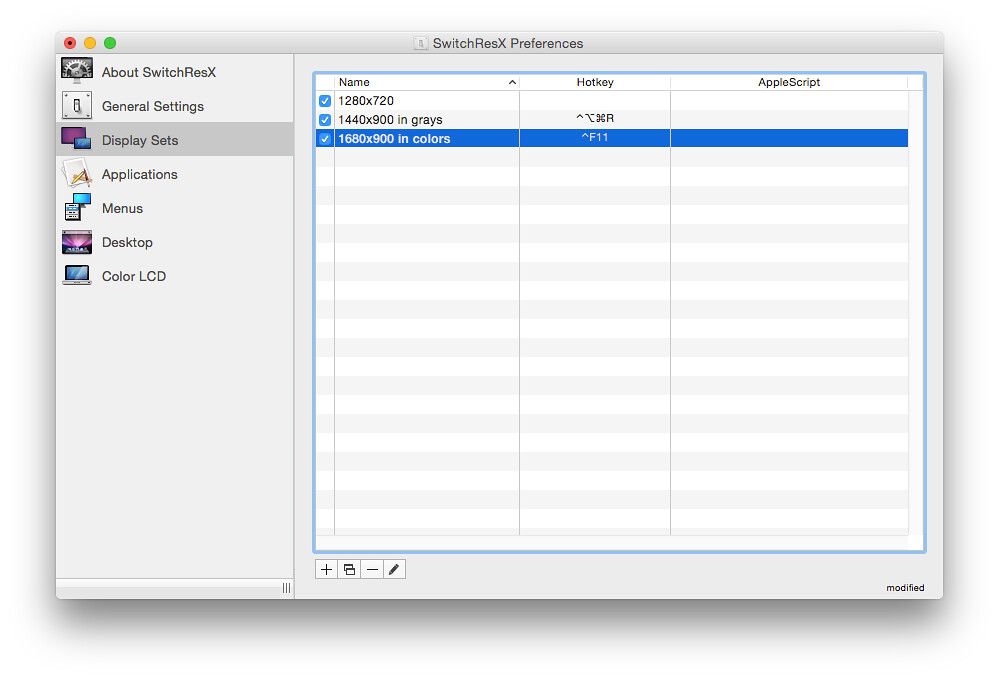
• Link your monitor settings with system events: Key shortcuts, Apple Scripts, Application launches and more.
• Take complete control over your display resolution: Advanced features let you create and enable new resolutions for your monitor, HDTV, Plasma or LCD screen or Video Projector.
WHAT’S NEW
Version 4.13.3:
• Correctly applies previous settings when a monitored application quits
• Solves an issue when detecting the MacBook TouchBar as a separate display on Sonoma
• Solves an issue where registration data would be erased
REQUIREMENTS
• Intel, 64-bit processor
• OS X 10.11 or later
ScreenShots
:
If you are using Adblocker!! Please support this website by adding us to your whitelist. Ads are what helps us bring you premium content! Or read this to know how you can support us. Thank you!
Size
– 7.8MB
Previous Versions
Editor-checked details
Recommended for multi-display, ultrawide, TV/projector, dock and per-app resolution workflows, especially technical users who can retain a fallback screen and validate incrementally. Record a native baseline; hash the installer; test one screen; save the desktop; create one Display Set; validate quit restoration, sleep, hot-plug and reboot; only then add automation. Disable triggers before OS upgrades and retest every display afterward. Compare MonitorControl for brightness/input control, BetterDisplay for virtual displays/scaling/management, and use macOS Settings first for ordinary supported scaling.
Pros
- It exposes finer resolution, refresh, mirroring, rotation, overscan and display activation controls than System Settings. Display Sets combine settings and can react to apps, shortcuts, AppleScript or system events. Desktop-layout restoration benefits workstations that frequently change displays, projectors or docks. Custom modes can solve some unusual aspect-ratio, TV and projector workflows.
Cons
- Custom modes remain constrained by GPU, EDID, link bandwidth, adapters, macOS and the display; arbitrary numbers do not guarantee a working signal, and bad timings can black-screen. Software cannot unlock every HiDPI, HDR, variable-refresh or high-bandwidth mode. A helper and automatic rules add troubleshooting complexity and may switch settings during presentations or remote sessions. Window restoration is sensitive to display identity and port changes. Revalidate around OS upgrades; this is not proof of hardware compatibility or colour accuracy.
Installation steps
- The site build is SwitchResX 4.13.3, requiring OS X 10.11 or later and a 64-bit processor. Record macOS, Mac/CPU, display models, ports/adapters, native resolution, refresh rate, scaling, rotation, HDR, mirroring and arrangement, and capture System Settings before installation. Verify provenance and SHA-256, place the app in Applications and launch SwitchResX Control; enable the optional preference pane only if needed. Preserve native modes first, then test resolution, colour depth, mirroring, rotation, overscan and deactivation one display at a time, saving the desktop layout before creating Display Sets. Start custom timings from a known native mode and change one parameter at a time. HiDPI scaling commonly uses a custom scaled resolution twice the intended logical dimensions, but driver, macOS and display limits apply; SwitchResX does not itself enable unsupported HiDPI. Before binding sets to apps, shortcuts, AppleScript or system events, test launch/quit restoration, sleep/wake, hot-plug, clamshell and reboot. Keep a safe fallback mode and a way to disconnect the external screen.
Uninstallation steps
- Before removal, export or capture every display, Display Set, app/event rule, custom resolution, desktop layout and licence state. Record 4.13.3, macOS, architecture, connection chain and SHA-256. Disable automatic triggers and login launch, return every active screen to a safe native mode and verify sleep/wake. Prefer the product’s own uninstall/remove-components path; stop its helper, menu item and optional preference pane before removing the app. Delete preferences/support data only when restoration is unnecessary. Reboot and inspect System Display settings, window positions, clamshell and each port. Never clean display configuration while black-screened or unattended over remote access; retain settings and installer until repeated reboots and hot-plugs are stable.
Common errors and fixes
- Rejected custom modes usually mean EDID, GPU/driver or macOS timing limits. Clone a native timing, check pixel clock, totals, refresh and scaled-width limits, reboot and inspect status; do not enable several unknown modes together. Missing HiDPI means SwitchResX can only manage modes macOS exposes—it cannot guarantee HiDPI; the official Apple-silicon FAQ recommends at least Monterey 12.4 and connector/display limits still apply. For black screen/no signal, wait for fallback, disconnect the suspect display/adapter and restore native mode from another screen; never save it blindly. Version 4.13.3 fixes restoration when a monitored app quits: rebuild the rule and check duplicate processes or competing events. It also fixes Sonoma detecting Touch Bar as a display and erased registration data; confirm the exact build, restart its helper, retain licence proof and inspect preference permissions/cleaners. Save a desktop layout per physical cabling to prevent window/icon displacement.
What changed in this version
- SwitchResX 4.13.3 has three site-channel fixes: correctly restore previous settings when a monitored application quits; stop Sonoma detecting a MacBook Touch Bar as a separate display; and prevent registration data from being erased. Later-version changes are not attributed to 4.13.3.
File verification





Screenshots